File file = new File("phantom,.exe_file");

  System.setProperty("phantomjs.binary.path", file.getAbsolutePath());
  new DesiredCapabilities();
  DesiredCapabilities desiredCapabilities = DesiredCapabilities.phantomjs();
  desiredCapabilities.setJavascriptEnabled(true);
  // turn off logging
  ArrayList<String> cliArgsCap = new ArrayList<String>();
  cliArgsCap.add("--webdriver-loglevel=NONE");

  desiredCapabilities.setCapability(PhantomJSDriverService.PHANTOMJS_CLI_ARGS, cliArgsCap);
  Logger.getLogger(PhantomJSDriverService.class.getName()).setLevel(Level.OFF);

  driver = new PhantomJSDriver(desiredCapabilities);
Showing posts with label Selenium. Show all posts
Showing posts with label Selenium. Show all posts
Wednesday, April 27, 2016
Phantom JS
Implement phantomJS with logger OFF

Saturday, April 16, 2016
SELENIUM PAGE OBJECT MODEL
PAGE OBJECT MODEL, PAGE OBJECT DESIGN PATTERN WITH and WITHOUT PAGE-FACTORY
_______________________________________________________________________________
1. Each page within the AUT (Application Under Test) is considered as a Java class./ A major functionality within page could be considered as class or several functionality within a page could be considered as inner class.
2. Identify what you need to test on a particular page.
3. Identify all the locators on that page which are required to perform identified tests
I am taking an example of Wordpress as AUT
Here I will show you example of Page Object Design Pattern using PageFactory as well as without using PageFactory.
 |
 |
| As you can see every pages is considered as a java class. All locators which are required to perform tests on that page are considered as instance variable or class(static) variable on that page. For example lets say we are working on a login page. To perform a login action on that page we need username, password and finally need to click on submit or login button, so clearly we have need three web elements here for which we need three locators. |
// login page locators
By userName = By.id("user_login");
By password = By.id("user_pass");
By loginButton = By.id("wp-submit");
The main difference between PageFactory and non PageFactory design pattern is, in PageFactory design pattern the locators are used within @FindBy annotation with How enum and that returns an object of type WebElement where as in non PageFactory design pattern the locators are used as an argument to "By class" static methods.

which returns an Object of type By.
Non pagefactory
By userName = By.id("user_login");
By password = By.id("user_pass");
By loginButton = By.id("wp-submit");
PageFactory using @FindBy annotation
@CacheLookup
@FindBy(how = How.ID, using = "user_login")
WebElement userName;
@CacheLookup
@FindBy(how = How.ID, using = "user_pass")
WebElement password;
@CacheLookup
@FindBy(how = How.ID, using
WebElement loginButton;
In non-page factory design we need an argument constructor which which will pass driver instance from test class to page class.

In pageFactory design approach we use PageFactory.initElements, this initElements takes argument as
driver The driver that will be used to look up the elements and
pageClassToProxy A class which will be initialised.
which return An instantiated instance of the class with WebElement and List<WebElement> fields proxied

Tuesday, February 16, 2016
Selenium take screenshot of WebElement
Selenium take screenshot of WebElement
      public void takeScreenShotOfWebElement(WebDriver driver, By by) throws IOException, InterruptedException
      {
           File screenShot = ((TakesScreenshot)driver).getScreenshotAs(OutputType.FILE);
           BufferedImage imageIO = ImageIO.read(screenShot);
           WebElement timelineLeftNavAvatar = driver.findElement(by);
           Point point = timelineLeftNavAvatar.getLocation();
           int height=timelineLeftNavAvatar.getSize().height;
           int width=timelineLeftNavAvatar.getSize().width;
           BufferedImage subImage = imageIO.getSubimage(point.getX(), point.getY(), height, width);
           ImageIO.write(subImage, "png", screenShot);
           Thread.sleep(10000);
      }
Wednesday, January 13, 2016
Selenium RemoteWebDriver usage
This is a write up about how to use RemoteWebDriver for all browsers
To start the server java -jar selenium-server-standalone-2.48.2.jar
When you start the server, chrome and firefox will work
Because the official documentation says
Client mode: where the language bindings connect to the remote instance. This is the way that the FirefoxDriver, OperaDriver and the RemoteWebDriver client normally work.
Server mode: where the language bindings are responsible for setting up the server, which the driver running in the browser can connect to. The ChromeDriver works in this way.
For internet Explorer and Chrome where language bindings are responsible for setting up the server start the server like
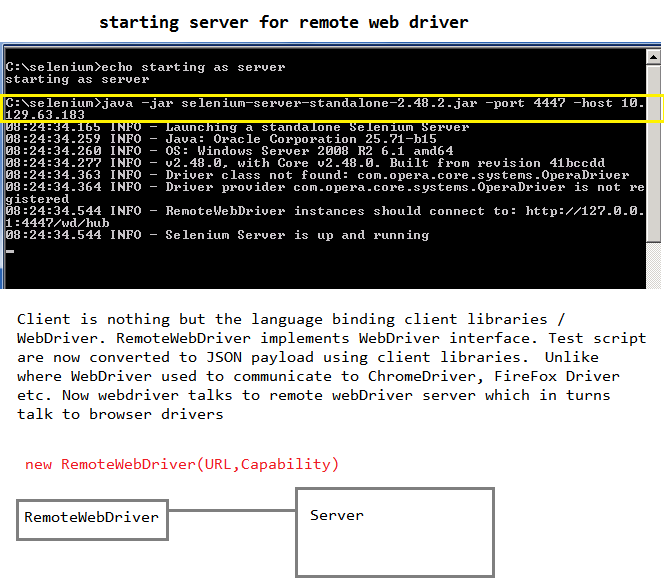
For Internet Explorer
C:\selenium>java -jar selenium-server-standalone-2.48.2.jar -Dwebdriver.ie.driver="C:\selenium\IEDriverServer_Win32_2.48.0\IEDriverServer.exe"
For Chrome
C:\selenium>java -jar selenium-server-standalone-2.48.2.jar -Dwebdriver.chrome.driver="C:\selenium\<path to chrome driver>
When you want to use multiple instance of same browser or multiple browser on same remote machine use GRID
Working with Internet Explorer
_____________________________
Start the remote server using the following command
java -jar selenium-server-standalone-2.48.2.jar -Dwebdriver.ie.driver="C:\selenium\IEDriverServer_Win32_2.48.0\IEDriverServer.exe"
Below code will open ie browser at remote location 10.129.63.183:4444
desiredCapabilities.setCapability(InternetExplorerDriver.INTRODUCE_FLAKINESS_BY_IGNORING_SECURITY_DOMAINS, true);
is used to ignoreProtectedModeSettings for several zones in IE.
Below code will open ie browser at remote location 10.129.63.183:4444
and will print browser details
Start the server in remote machine
java -jar selenium-server-standalone-2.48.2.jar -Dwebdriver.chrome.driver="C:\selenium\chromedriver_win32\chromedriver.exe"
To start the server java -jar selenium-server-standalone-2.48.2.jar
When you start the server, chrome and firefox will work
Because the official documentation says
Client mode: where the language bindings connect to the remote instance. This is the way that the FirefoxDriver, OperaDriver and the RemoteWebDriver client normally work.
Server mode: where the language bindings are responsible for setting up the server, which the driver running in the browser can connect to. The ChromeDriver works in this way.
For internet Explorer and Chrome where language bindings are responsible for setting up the server start the server like
For Internet Explorer
C:\selenium>java -jar selenium-server-standalone-2.48.2.jar -Dwebdriver.ie.driver="C:\selenium\IEDriverServer_Win32_2.48.0\IEDriverServer.exe"
For Chrome
C:\selenium>java -jar selenium-server-standalone-2.48.2.jar -Dwebdriver.chrome.driver="C:\selenium\<path to chrome driver>
When you want to use multiple instance of same browser or multiple browser on same remote machine use GRID
Working with Internet Explorer
_____________________________
Start the remote server using the following command
java -jar selenium-server-standalone-2.48.2.jar -Dwebdriver.ie.driver="C:\selenium\IEDriverServer_Win32_2.48.0\IEDriverServer.exe"
Below code will open ie browser at remote location 10.129.63.183:4444
desiredCapabilities.setCapability(InternetExplorerDriver.INTRODUCE_FLAKINESS_BY_IGNORING_SECURITY_DOMAINS, true);
is used to ignoreProtectedModeSettings for several zones in IE.
      public static void ieRemoteWebDriver(RemoteWebDriver rwd) {
       DesiredCapabilities desiredCapabilities = DesiredCapabilities.internetExplorer();
       desiredCapabilities.setCapability(InternetExplorerDriver.INTRODUCE_FLAKINESS_BY_IGNORING_SECURITY_DOMAINS, true);
       try {
       rwd = new RemoteWebDriver(new URL("http://10.129.63.183:4444/wd/hub"), desiredCapabilities);
       } catch (MalformedURLException e) {
       // TODO Auto-generated catch block
       e.printStackTrace();
       }
      }
Below code will open ie browser at remote location 10.129.63.183:4444
and will print browser details
      public static void ieRemoteWebDriver(RemoteWebDriver rwd) {
           DesiredCapabilities desiredCapabilities = DesiredCapabilities.internetExplorer();
           desiredCapabilities.setCapability(InternetExplorerDriver.INTRODUCE_FLAKINESS_BY_IGNORING_SECURITY_DOMAINS,
                     true);
           try {
                rwd = new RemoteWebDriver(new URL("http://10.129.63.183:4444/wd/hub"), desiredCapabilities);
                Capabilities actualCapabilityes = rwd.getCapabilities();
                System.out.println(actualCapabilityes.getVersion());
                System.out.println(actualCapabilityes.getBrowserName());
                System.out.println(actualCapabilityes.getPlatform());
           } catch (MalformedURLException e) {
                // TODO Auto-generated catch block
                e.printStackTrace();
           }
      }
For setting Capability for browser selection . Common for all browsers
| Key | Type | Description |
| browserName | string | The name of the browser being used; should be one of {android|chrome|firefox|htmlunit|internet explorer|iPhone|iPad|opera|safari}. |
| version | string | The browser version, or the empty string if unknown. |
| platform | string | A key specifying which platform the browser should be running on. This value should be one of {WINDOWS|XP|VISTA|MAC|LINUX|UNIX|ANDROID}. When requesting a new session, the client may specify ANY to indicate any available platform may be used. For more information see [GridPlatforms] |
Setting desired capability for browser name
DesiredCapabilities desiredCapabilities = new DesiredCapabilities();
desiredCapabilities.setBrowserName("internet explorer");
desiredCapabilities.setCapability(InternetExplorerDriver.INTRODUCE_FLAKINESS_BY_IGNORING_SECURITY_DOMAINS,
true);
OR
   DesiredCapabilities desiredCapabilities = DesiredCapabilities.internetExplorer();
           desiredCapabilities.setCapability(InternetExplorerDriver.INTRODUCE_FLAKINESS_BY_IGNORING_SECURITY_DOMAINS,
                     true);
Setting desired capability for Version, Platform (example)
desiredCapabilities.setCapability("platform", Platform.ANY);
desiredCapabilities.setCapability("version", "11");
Working with Chrome Driver
_____________________________
desiredCapabilities.setCapability("platform", Platform.ANY);
desiredCapabilities.setCapability("version", "11");
- For a list of capability specific to Internet Explorer please refer HERE
Working with Chrome Driver
_____________________________
Start the server in remote machine
java -jar selenium-server-standalone-2.48.2.jar -Dwebdriver.chrome.driver="C:\selenium\chromedriver_win32\chromedriver.exe"
Selenium Chrome Driver Usage
Available constructors for Chrome Driver

A list of all Chrome Driver Capability
https://sites.google.com/a/chromium.org/chromedriver/capabilitiesChrome Driver usage for constructor ChromeDriver(service, options);
Opening a already created Chrome profile to a new Chrome browser instance.To create a new chrome profile, enter chrome://version/ in chrome navigation bar and checkout the profilePath. Close the browser and rename the default profile path.
Now if you open the Chrome browser the browser will create a new default profile folder Default again
OR
you can use the below method and start an instance of Chrome browser by setting
options.addArgument("user-data-directory=C:/xx/xx/profile_name")
          // USE OF CHROME Driver constructor ChromeDriver(service, options)
 public static void ChromeLocalDriver02(WebDriver driver) {
  System.setProperty("webdriver.chrome.driver", "C:\\Java_Source_Code\\chromedriver_win32\\chromedriver.exe");
  // setting up the service
  ChromeDriverService.Builder builder = new ChromeDriverService.Builder();
  ChromeDriverService service = builder.withLogFile(new File("C:\\Test\\ie_log\\chrome1.log")).build();
  // chrome options
  ChromeOptions options = new ChromeOptions();
  // Opening Chrome browser with current default profile
  options.addArguments("user-data-dir=C:\\Users\\sudas\\AppData\\Local\\Google\\Chrome\\User Data\\sudas");
  // this is to start Chrome windows as maximized
  options.addArguments("start-maximized");
  driver = new ChromeDriver(service, options);
 }
      }
To find out which profile the browser is currently using enter chrome://version/ in Chrome's address bar and checkout the "ProfilePath"


Chrome Driver usage for constructor ChromeDriver(service, capabilities);
      // USE OF CHROME Driver CAPABILITY through DesiredCapabilities
      // Used constructor ChromeDriver(service, capabilities)
      public static void ChromeLocalDriver01(WebDriver driver) {
           System.setProperty("webdriver.chrome.driver", "C:\\Java_Source_Code\\chromedriver_win32\\chromedriver.exe");
           // "ChromeDriverService" similar to InternetExplorerDriverService
           ChromeDriverService.Builder builder = new ChromeDriverService.Builder();
           ChromeDriverService service = builder.withLogFile(new File("C:\\Test\\ie_log\\chrome1.log")).build();
           DesiredCapabilities capabilities = new DesiredCapabilities();
           // capabilities.setCapability(ChromeDriverService.CHROME_DRIVER_VERBOSE_LOG_PROPERTY,
           // true);
           capabilities.setCapability(ChromeDriverService.CHROME_DRIVER_SILENT_OUTPUT_PROPERTY, true);
           driver = new ChromeDriver(service, capabilities);
      }
Chrome Driver usage for constructor ChromeDriver(capabilities);
      public static void ChromeLocalDriver03(WebDriver driver) {
           System.setProperty("webdriver.chrome.driver", "C:\\Java_Source_Code\\chromedriver_win32\\chromedriver.exe");
           ChromeOptions options = new ChromeOptions();
           options.addExtensions(new File("C:\\DRIVE\\My Documents\\Downloads\\AdBlock_v2.46.crx"));
           DesiredCapabilities capabilities = new DesiredCapabilities();
           capabilities.setCapability(ChromeOptions.CAPABILITY, options);
           driver = new ChromeDriver(capabilities);
      }
Saturday, January 9, 2016
Selenium: WebDriverEventListener and EventFiringWebDriver
WebDriverEvenListner interface and EventFiringWebDriver class
When you are running test using WebDriver Interface in Selenium there are many events that get fired before and after navigation to an URL.
EventFiringWebDriver class is a wrapper for normal WebDriver interface, that gives the capability to WebDriver to fire Events. EventListener class (let’s say) which implements WebDriverEventListner handles all the events that are dispatched by EventFiringWebDriver class
To capture even there are two different type of implementations
- By creating a class say EventListner implements WebDriverEventListner
OR
2. By creating a class say EventListner extends AbstractWebDriverEventListner
class EventListner implements WebDriverEventListener
{
@Overriding method
////////// NAVIGATION RELATED METHODS ////////////////
/////////////////// FINDBY RELATED METHODS ///////////////
//////////////////// CLICKON RELATED METHODS ///////////////
///////////////// CHANGE OF VALUE RELATED METHODS //////////////
/////////////// SCRIPT EXECUTION RELATED METHODS ///////////////
/////////////// EXCEPTION RELATED METHODS ///////////////////////
}
/***
* Step -02 Register the WebDriverEventListner (Listener) with the WebDriver
* instance. 1. Create WebDriver instance 2. Create EventFiringWebDriver
* instance and pass the WebDriver object to EventFiringWebDriver
* constructor argument. 3. Create an instance of EventListener.
* EventListner class created at step-01 4. Register the listener i.e
* EventFiringWebDriver efwd = new EventFiringWebDriver(driver)
* efwd.register(object of EventListner)
*
*/
public static void registerListener(WebDriver driver) {
// 1. Create WebDriver instance
driver = new ChromeDriver();
// * 2. Create EventFiringWebDriver instance and pass the WebDriver
// object to EventFiringWebDriver constructor argument.
EventFiringWebDriver efwd = new EventFiringWebDriver(driver);
// * 3. Create an instance of EventListener. EventListner class created
// at step-01
EventListner listner = new EventListner();
// * 4. Register the listener
efwd.register(listner);
}
Friday, January 8, 2016
Selenium Internet Explorer Driver usage
Available Constructors for InternetExplorerDriver

- Use of internet explorer constructor "InternetExplorerDriver(capabilities)"
   // using Internet Explorer local through Internet Explorer Driver
      public static void ieLocalDriver(WebDriver driver) {
           System.setProperty("webdriver.ie.driver",
                     "C:\\Java_Source_Code\\IEDriverServer_Win32_2.48.0\\IEDriverServer.exe");
           DesiredCapabilities capabilities = new DesiredCapabilities();
           // setting IE specific capability
           // this is to override Protected mode settings for zones
           capabilities.setCapability(InternetExplorerDriver.INTRODUCE_FLAKINESS_BY_IGNORING_SECURITY_DOMAINS, true);
           // this is for setting logging
           capabilities.setCapability(InternetExplorerDriver.LOG_FILE, "C:\\Test\\ie_log\\logs.log");
           // this is for setting logging level
           capabilities.setCapability("logLevel", "INFO");
           driver = new InternetExplorerDriver(capabilities);

      }
- Use of set capability

capability can be either set through InternetExplorerDriver class static fields OR can be set through static final fields from CapabilityType Interface.
Using InternetExplorerDriver constructor "InternetExplorerDriver(service, capabilities)"
Using InternetExplorerDriver constructor "InternetExplorerDriver(service, capabilities)"
      public static void ieLocalDriver02(WebDriver driver) {
           System.setProperty("webdriver.ie.driver",
                     "C:\\Java_Source_Code\\IEDriverServer_Win32_2.48.0\\IEDriverServer.exe");
           // this is to override Protected mode settings for zones
           DesiredCapabilities capabilities = new DesiredCapabilities();
           capabilities.setCapability(InternetExplorerDriver.INTRODUCE_FLAKINESS_BY_IGNORING_SECURITY_DOMAINS, true);
           InternetExplorerDriverService.Builder builder = new InternetExplorerDriverService.Builder();
           InternetExplorerDriverService service = builder.withLogFile(new File("C:\\Test\\ie_log\\ie.log"))
                     .withLogLevel(InternetExplorerDriverLogLevel.INFO).build();
           // I am using the capability and service both
           driver = new InternetExplorerDriver(service, capabilities);
      }
Internet Explorer specific capability https://code.google.com/p/selenium/wiki/DesiredCapabilities
This is how the capability constructor are used

For setting up the capability of a browser either you use STATIC FINAL VALUES of InternetExplorerDriver

OR pass it as a String parameter to capabilities.setCapability(String, String value), etc
Other Internet Explorer Capabilities

Wednesday, January 6, 2016
Selenium - FireFox Driver Usage
Use of FireFox Profile
Available constructors
Here we will see how Firefox driver can make use of a already created profile in firefox.
To check out which profile Firefox is using currently enter about:support in Firefox address bar and check for "Profile Folder".
Firefox Profile :
Firefox profile has a default constructor and other constructor taken an argument of type file.
To check out which profile Firefox is using currently enter about:support in Firefox address bar and check for "Profile Folder".
To create / modify/ delete a new Firefox profile
To create, rename, or delete a profile, you have to perform the following steps:
1. Open the Firefox profile manager. To do that, in the command prompt
terminal, you have to navigate to the install directory of Firefox; typically, it
would in Program Files if you are on Windows. Navigate to the location where
you can find the firefox.exe file, and execute the following command:
firefox.exe -p
It will open the profile manager that will look like the following screenshot:
Note that before executing the above command, you need to make sure you
close all your currently running Firefox instances.
2. Use the Create Profile... button to create another profile, Rename Profile...
button to rename an existing profile, and Delete Profile... button to delete one.
Firefox Profile :
Firefox profile has a default constructor and other constructor taken an argument of type file.
Use of constructor FirefoxDriver(FirefoxProfile profile)
// using a already created profilepublic static void fireFoxProfileA(WebDriver driver) { FirefoxProfile profile = new FirefoxProfile( new File("C:\\Users\\sudas\\AppData\\Roaming\\Mozilla\\Firefox\\Profiles\\t1skcchd.sudas1")); driver = new FirefoxDriver(profile); driver.get("http://www.yahoo.com"); }
// Creating an instance of firefox profile for a specific plugin and store as JSONpublic static void fireFoxProfileB(WebDriver driver) { FirefoxProfile profile = new FirefoxProfile(); try {
// adding a extension to the new Firefox session
                profile.addExtension(new File("C:\\Java_Source_Code\\FireFoxExtensions\\firebug-2.0.13-fx.xpi"));
                String json = profile.toJson();
                // write the profile to a file
                BufferedOutputStream bos = new BufferedOutputStream(
                          new FileOutputStream(new File("C:\\Java_Source_Code\\FireFoxExtensions\\profile.json")));
                bos.write(json.getBytes());

                driver = new FirefoxDriver(profile);
                driver.get("http://www.yahoo.com");
                bos.flush();
                bos.close();
           } catch (IOException e) {
                // TODO Auto-generated catch block
                e.printStackTrace();
           }
      }
Use of preference with Firefox
FirefoxDriver overwrites all the default preferences of Firefox in the user.js file
for you
List of preferenceuser_pref("extensions.update.notifyUser", false);
user_pref("security.warn_entering_secure.show_once", false);
user_pref("devtools.errorconsole.enabled", true);
user_pref("extensions.update.enabled", false);
user_pref("browser.dom.window.dump.enabled", true);
user_pref("offline-apps.allow_by_default", true);
user_pref("dom.disable_open_during_load", false);
user_pref("extensions.blocklist.enabled", false);
user_pref("browser.startup.page", 0);
user_pref("toolkit.telemetry.rejected", true);
user_pref("prompts.tab_modal.enabled", false);
user_pref("app.update.enabled", false);
user_pref("app.update.auto", false);
user_pref("toolkit.networkmanager.disable", true);
user_pref("browser.startup.homepage", "about:blank");
user_pref("network.manage-offline-status", false);
user_pref("browser.search.update", false);
user_pref("toolkit.telemetry.enabled", false);
user_pref("browser.link.open_newwindow", 2);
user_pref("browser.EULA.override", true);
user_pref("extensions.autoDisableScopes", 10);
user_pref("browser.EULA.3.accepted", true);
user_pref("security.warn_entering_weak", false);
user_pref("toolkit.telemetry.prompted", 2);
user_pref("browser.safebrowsing.enabled", false);
user_pref("security.warn_entering_secure", false);
user_pref("security.warn_leaving_secure.show_once", false);
user_pref("webdriver_accept_untrusted_certs", true);
user_pref("browser.download.manager.showWhenStarting", false);
user_pref("dom.max_script_run_time", 30);
user_pref("javascript.options.showInConsole", true);
user_pref("network.http.max-connections-per-server", 10);
user_pref("network.http.phishy-userpass-length", 255);
user_pref("extensions.logging.enabled", true);
user_pref("security.warn_leaving_secure", false);
user_pref("browser.offline", false);
user_pref("browser.link.open_external", 2);
user_pref("signon.rememberSignons", false);
user_pref("webdriver_enable_native_events", true);
user_pref("browser.tabs.warnOnClose", false);
user_pref("security.fileuri.origin_policy", 3);
user_pref("security.fileuri.strict_origin_policy", false);
user_pref("webdriver_assume_untrusted_issuer", true);
user_pref("startup.homepage_welcome_url", "");
user_pref("browser.shell.checkDefaultBrowser", false);
user_pref("browser.safebrowsing.malware.enabled", false);
user_pref("security.warn_submit_insecure", false);
user_pref("webdriver_firefox_port", 7055);
user_pref("dom.report_all_js_exceptions", true);
user_pref("security.warn_viewing_mixed", false);
user_pref("browser.sessionstore.resume_from_crash", false);
user_pref("browser.tabs.warnOnOpen", false);
user_pref("security.warn_viewing_mixed.show_once", false);
user_pref("security.warn_entering_weak.show_once", false);
To set the preference use the Key, Value pair

Use FireFox profile with preference
Firefox profile methods

Here I am using an already existing profile and setting a preference on the profile
      // using firefox profile along with preference
      public static void fireFoxProfileA(WebDriver driver) {
           FirefoxProfile profile = new FirefoxProfile(
                     new File("C:\\Users\\sudas\\AppData\\Roaming\\Mozilla\\Firefox\\Profiles\\t1skcchd.sudas1"));
           //setting preference
           profile.setPreference("browser.startup.homepage", "https://www.yahoo.co.in/");
           driver = new FirefoxDriver(profile);
 //          driver.get("http://www.yahoo.com");
      }
Subscribe to:
Posts (Atom)